Pixel art sizes: 16x16 vs 32x32 vs 64x64
What size should your pixel art be? Compare 16x16, 32x32, 64x64 and bigger canvases, see what fits in each, and pick the right size for games, icons and crafts.
7 min read
The first question in any pixel art project is the one people skip: how big should the canvas be? It matters more than the colors, the brushes or the app you use. The size decides how much detail you can fit, how long the art takes, and even what style it ends up in.
Here’s the short answer, and the rest of this guide explains why:
- 16×16 for icons, items, tiles and your first sprites.
- 32×32 for game characters with a readable face, avatars and detailed objects.
- 64×64 and up for portraits, scenes and anything converted from a photo.
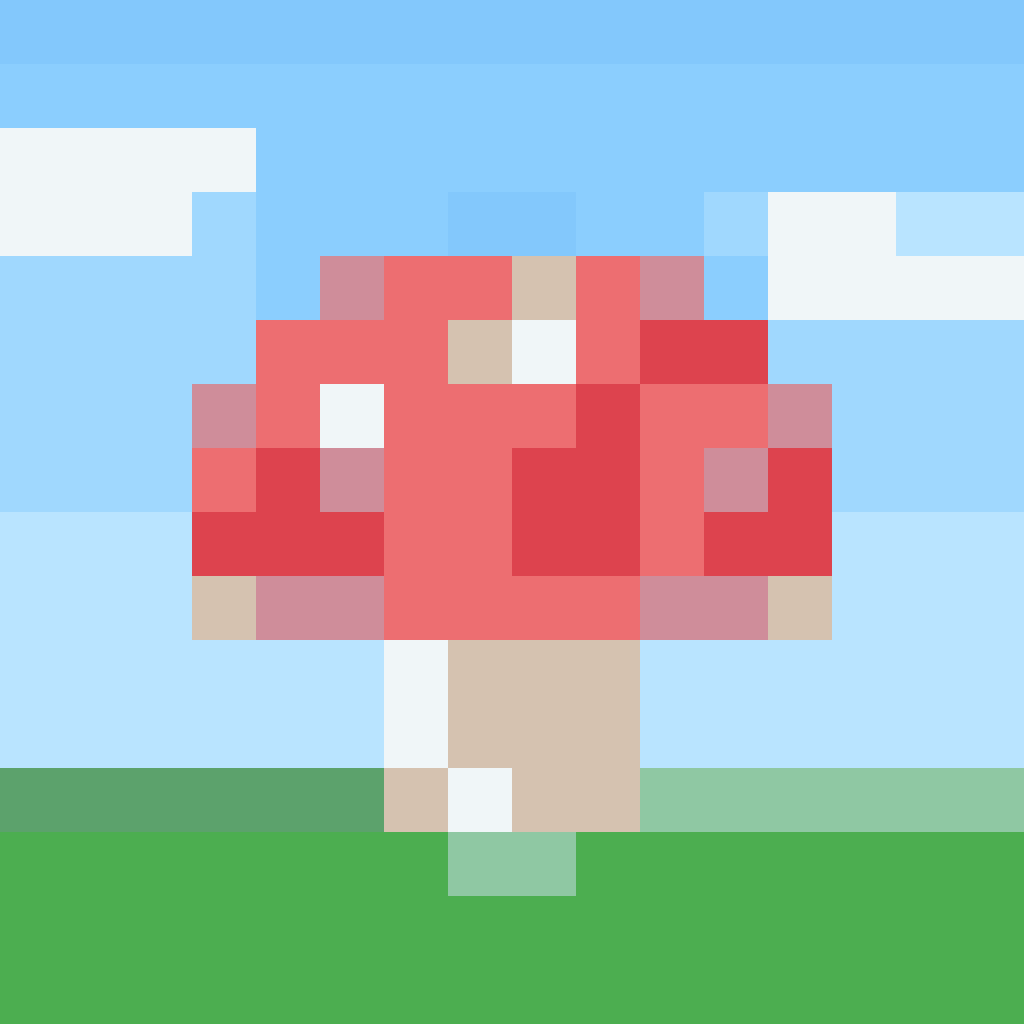
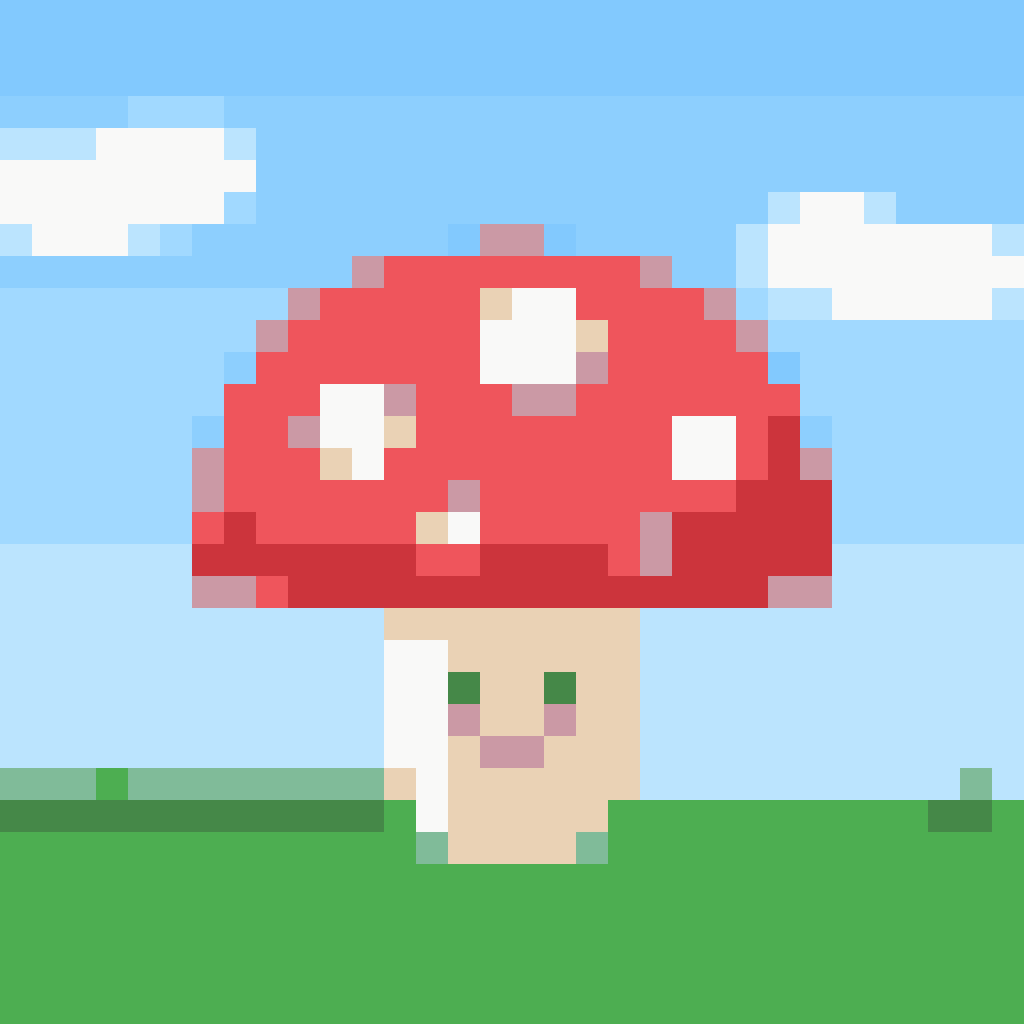
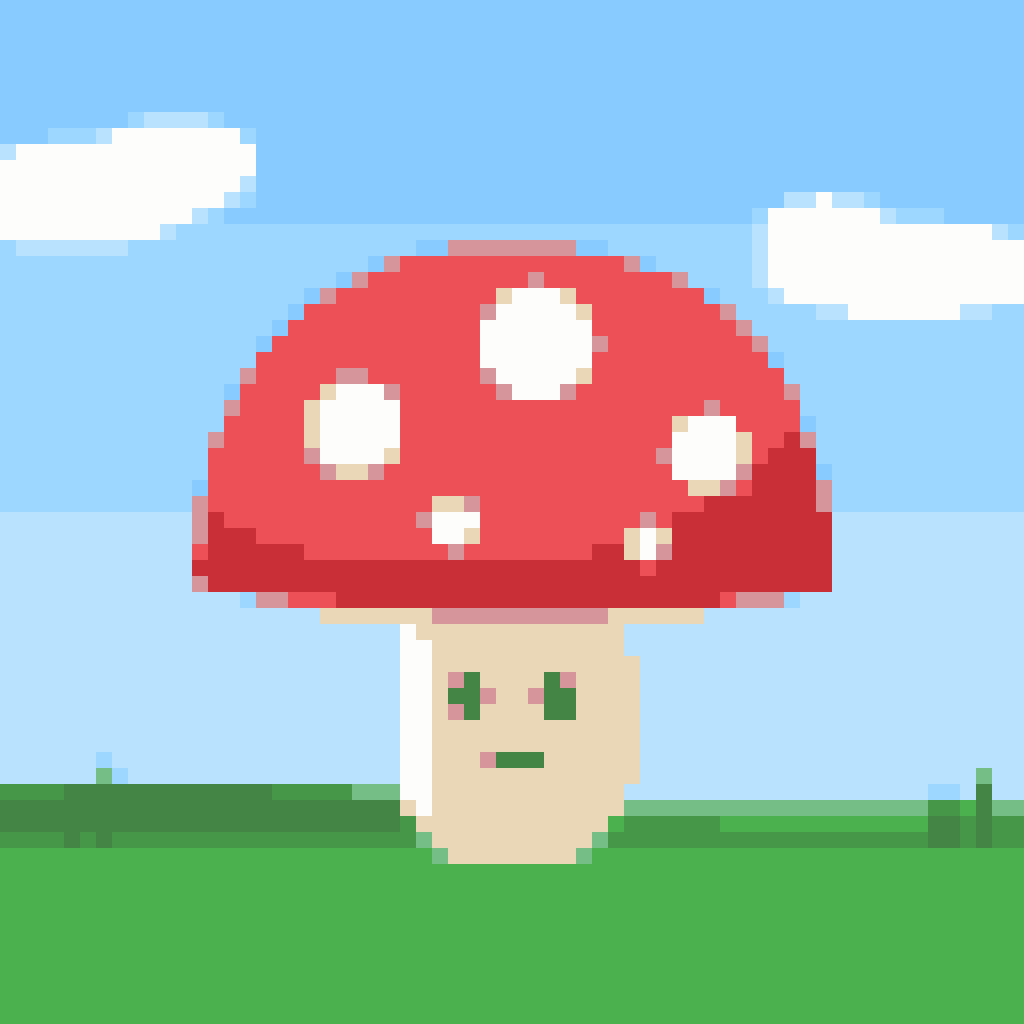
Why the size matters so much
Doubling the width of a canvas doesn’t double the work. It quadruples it, because the height doubles too.
| Canvas | Pixels | Compared with 16×16 |
|---|---|---|
| 8×8 | 64 | a quarter |
| 16×16 | 256 | 1× |
| 32×32 | 1,024 | 4× |
| 64×64 | 4,096 | 16× |
| 128×128 | 16,384 | 64× |
That changes the kind of art you make, not just how long it takes. At 16×16 you can’t draw a nose, so you suggest a face with two dots for eyes. Every pixel is a decision, and the result is closer to a symbol than a picture. At 64×64 you have room for shading, folds in clothing and a background, and the work becomes illustration.
Neither is better. Some of the most loved pixel art ever made lives in tiny canvases, precisely because so little has to say so much.
16×16: icons, items and first sprites
16×16 is the classic size. It’s small enough to finish in one sitting and big enough for a recognizable object or a simple character.
What fits: a heart, a coin, a potion, a sword, a mushroom, a cat’s face, a slime with two eyes. A full character fits too, but only as a chunky silhouette with a big head and short legs.
Where you’ll see it:
- Minecraft. The game’s default textures are 16×16, so blocks, items and resource packs are usually drawn at this size.
- Retro games. 8-bit consoles built their graphics from 8×8 tiles, and many characters, such as small Mario, were made of four of them: 16×16 in total.
- Favicons. The icon in a browser tab is usually shown at 16×16.
- Tiles. Many 2D games use 16×16 floor and wall tiles, even when the characters are taller.
The catch: pictures don’t convert well at this size. A converter has to squeeze a whole photo into 256 squares, and small details like eyes simply vanish between them. At 16×16, drawing by hand nearly always wins.
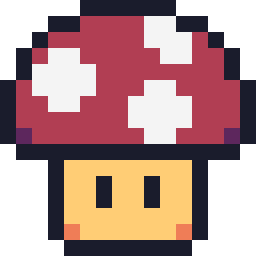
Want to try? The 16x16 pixel art maker opens on a blank 16×16 grid and comes with templates like the mushroom above that you can edit.
32×32: characters with personality
32×32 is where pixel art starts to show expression. With four times as many pixels as 16×16, a character can have eyes and a mouth, hair, clothes and a pose you can read.
What fits: a game hero or enemy with a face and outfit, a pet portrait, a detailed item or building, an avatar for Discord or Twitch.
Where you’ll see it:
- Indie games and RPGs. A very common character size. RPG Maker VX Ace, for example, uses 32×32 tiles.
- Animal Crossing: New Horizons. Custom designs are 32×32 pixels with 15 colors.
- Favicons on high-resolution screens, bookmarks and taskbars.
The catch: 32×32 is still small. Converted photos keep their overall shape, but faces come out rough, so plan to touch them up by hand.
The 32x32 pixel art maker opens on a blank 32×32 grid, with character and object templates to start from.
64×64 and bigger: portraits and scenes
At 64×64 (4,096 pixels) and beyond, you’re painting a small picture rather than a sprite. You can fit a portrait with shading, a character with a background, or a small landscape.
- 64×64 suits portraits, large bosses, detailed avatars and photos converted to pixel art.
- 128×128 and up suits illustrations, scenes and wallpapers. Drawn by hand, these take many hours.
This is also the range where converting a photo works well. The converter has enough pixels to keep faces and edges, and you can spend your time on cleanup instead of rebuilding the picture.
Picking a size for a game
If you’re making a game, the sprite size is tied to your screen resolution. A few rules make it easy:
- Pick a base resolution, then the sprite size. Pixel art games usually draw everything at a small resolution and scale it up. 320×180, 480×270 and 640×360 all scale to 1920×1080 by a whole number (×6, ×4 and ×3).
- Scale by whole numbers only. At 2×, 3× or 4× every pixel stays a crisp square. At 2.5× some pixels become wider than others and the art looks smudged.
- Keep one pixel size across the game. Don’t mix 16×16 sprites with 32×32 sprites scaled down by half, or the same scene ends up with two sizes of pixel. Artists call this “mixels”, and it’s one of the most common giveaways of beginner art.
- Characters can be taller than they are wide. 16×32 is a popular character size: as wide as one tile and two tiles tall. Stardew Valley’s characters are drawn this way.
Picking a size for crafts
For cross-stitch, Perler or Hama beads and crochet, every pixel is a stitch or a bead, so the canvas size sets the size of the finished piece and how long it takes to make.
| Canvas | Stitches or beads | Cross-stitch, 14-count Aida | Beads, 5 mm |
|---|---|---|---|
| 16×16 | 256 | about 2.9 cm (1.1 in) | 8 cm |
| 32×32 | 1,024 | about 5.8 cm (2.3 in) | 16 cm |
| 64×64 | 4,096 | about 11.6 cm (4.6 in) | 32 cm |
A 16×16 design fits on a single standard square pegboard; 32×32 already needs more than one. For a first project, stay small. Our guide on turning a picture into a cross-stitch pattern covers choosing colors and fabric.
Converting a photo: which size?
If you’re starting from a photo rather than drawing, the size matters even more, because the converter can only keep as much detail as the grid allows.
- For a recognizable face, use at least 32×32, and 48 to 64 pixels wide if you can.
- For a simple object on a plain background, 32×32 is often enough.
- For 16×16, use the converted result as a guide to trace over, then redraw it by hand.
Fewer colors help small conversions look cleaner, and dithering usually hurts at tiny sizes. Our post on dithering explains when it helps.
Changing the size later
You don’t have to get it right the first time. The pixel art maker can change the canvas size whenever you like and keeps your drawing centered, so you can start at 16×16 and grow to 32×32 when you run out of room.
What doesn’t work well is resizing the art itself. Shrinking a 32×32 sprite to 16×16 throws away three pixels out of every four, and the result needs to be redrawn anyway. Enlarging it by a whole number (2×, 3×, 4×) is fine, which is exactly what our downloads do to keep every pixel sharp.
Try it
- Small icon, item or first sprite? Open the 16x16 pixel art maker.
- Character or avatar? Open the 32x32 pixel art maker.
- Starting from a photo? Use the image to pixel art converter at 48 to 64 pixels wide, then fix the details in the maker.
Everything runs in your browser, for free, and your pictures never leave your device.