Image to Pixel Art Converter
Turn any photo or picture into pixel art in seconds. Free, no sign-up, and your images never leave your device.
Drop an image here
or paste one with Ctrl+V
PNG, JPG, WebP, GIF or SVG
No image handy? Try a sample:
100% private: your images are processed in your browser and never uploaded.
How to turn an image into pixel art
Three steps, no software to install and no account to create.
- 1
Upload your image
Drop a photo or picture onto the page, paste it from your clipboard, or choose a file. PNG, JPG, WebP, GIF and SVG all work.
- 2
Choose pixel size and colors
Pick how big the pixels are, or an exact square size like 16×16 or 32×32, and how many colors to use. Apply a retro palette like Game Boy or PICO-8, or use your own custom palette. The preview updates instantly, and you can drag the compare slider to see the original.
- 3
Download your pixel art
Save a sharp PNG at up to 64× size, with or without grid lines, copy it to your clipboard, or download a printable pattern with color codes for crafts.
What is an image to pixel art converter?
An image to pixel art converter turns an ordinary photo or picture into pixel art: an image built from a small grid of square pixels and a limited set of colors, like the graphics in classic video games.
It works in two steps. First it shrinks your image to the number of pixels you choose, averaging each area into one solid color. Then it reduces the colors, either to the best handful for your picture or to a retro palette such as Game Boy or PICO-8, optionally using dithering to suggest shades in between.
Drawing pixel art by hand can take hours. A converter gives you a faithful starting point in seconds, which you can use as it is or refine pixel by pixel in an editor.
What is pixel art?
Pixel art is a digital art style where every pixel is placed deliberately. It grew out of the hardware limits of 1980s and 1990s computers and consoles, which could only show low resolutions and a few colors at once.
Today it is a style in its own right: indie games, icons, stickers, avatars, animations and even physical crafts like bead art and cross-stitch use the same bold, blocky look.
Pixel art examples
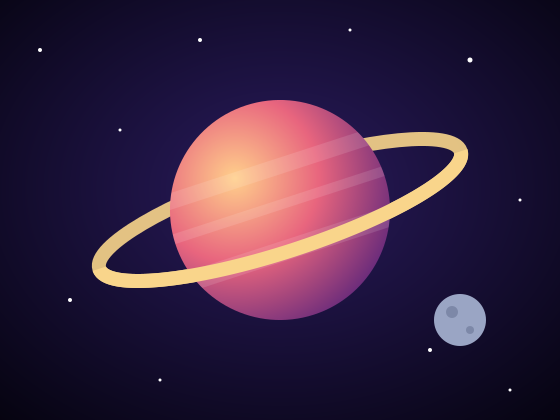
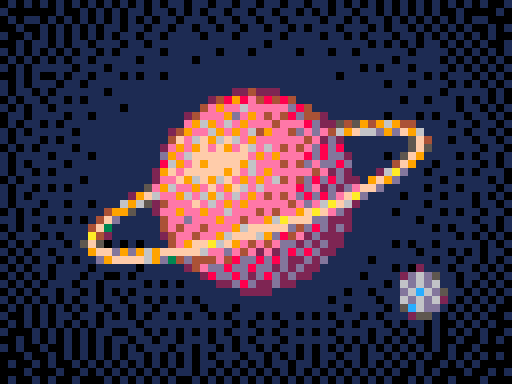
Every example below was made with this converter. Try the same pictures using the samples in the tool above.
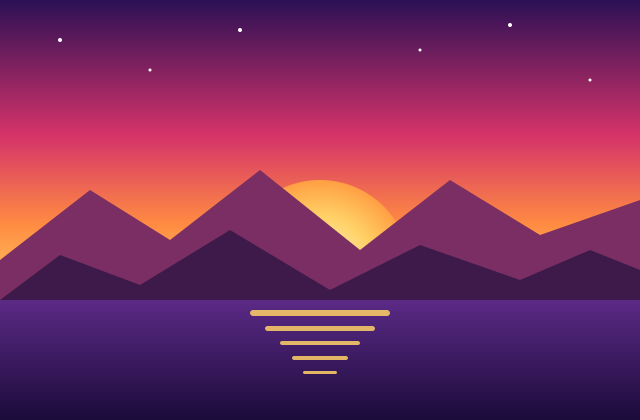
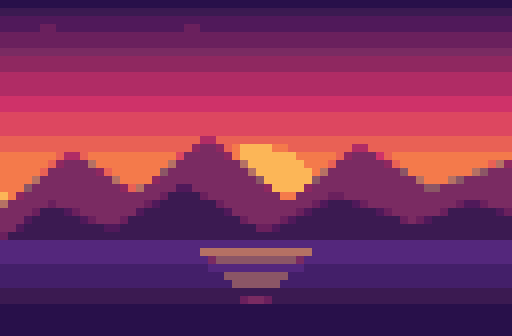
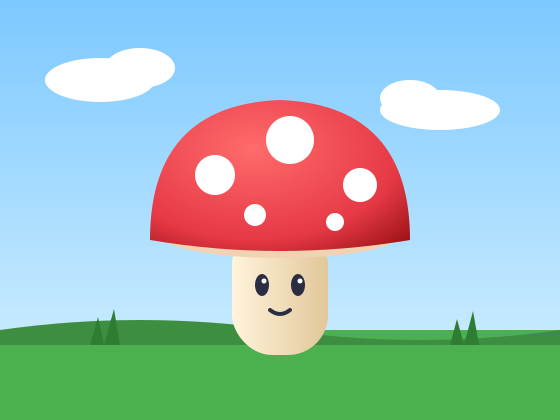
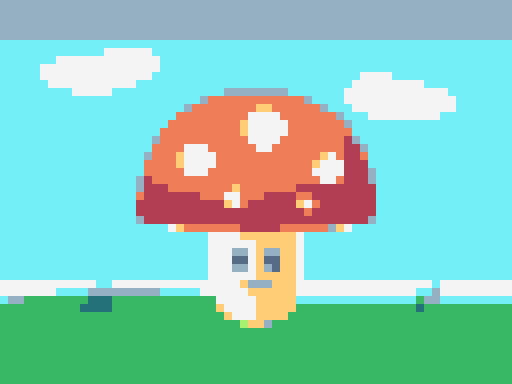
Everything you need to make pixel art from a photo
Patterns with a grid and color codes
Download a printable PDF pattern with numbered rows and columns, a code in every square and a color key with counts, or a PNG with grid lines. A darker line every 10 squares makes counting easy.
Retro and custom palettes
Use Game Boy, PICO-8, Commodore 64 and more, or create your own palette: paste hex codes, import any palette from Lospec, or load a .hex, .gpl or .pal file.
Smart color reduction
Automatic mode picks the 2 to 64 colors that best match your picture, so the result still looks like the original.
Dithering
Fake extra shades with smooth (Floyd–Steinberg) or patterned (ordered) dithering, the same trick 8-bit and 16-bit games used.
Square and exact sizes
Make 16×16, 32×32 or 64×64 pixel art, or any exact size, then zoom and drag to frame your subject. Downloads are enlarged by whole numbers, up to 64×, so pixels stay crisp.
Transparent backgrounds
Transparent PNGs stay transparent, which is ideal for game sprites, stickers and icons.
No AI, no surprises
A precise algorithm turns your image into pixel art. Nothing is invented, and the same settings always give the same result.
Free and private
No sign-up, no watermark, no limits. Your images are processed in your browser and are never uploaded.
Who is this pixel art converter for?
Anyone who wants pixel art without drawing every pixel by hand.
Game developers
Create sprites, tiles, textures and backgrounds from photos or concept art, then match them to your game's palette. Great for prototypes and game jams.
Artists and illustrators
Get a pixel-accurate reference to trace or refine, explore color palettes, or give an existing illustration a retro twist.
Crafters
Make patterns for crochet, cross-stitch, knitting, Perler and Hama beads, or diamond painting. Every square is numbered, and the color key tells you how much of each color you need.
Minecraft and sandbox builders
Plan pixel art builds block by block in Minecraft, Terraria and other building games, with a numbered pattern as your blueprint and a count of every color.
Content creators and streamers
Make 8-bit avatars, emotes, channel art, thumbnails and overlays that stand out on Twitch, YouTube and Discord.
Teachers and students
Show how digital images are made of pixels and colors, or turn pixel art into a fun grid-coloring classroom activity.
Why turn your images into pixel art?
- 01
Save hours of work
Instead of placing thousands of pixels by hand, get a complete piece of pixel art in seconds and spend your time on the finishing touches.
- 02
Keep the likeness
Colors are matched by how the human eye sees them, so faces, pets and places stay recognizable even with very few colors.
- 03
Get a consistent style
Applying one palette to many images makes a whole set of sprites, icons or illustrations look like they belong together.
- 04
Retro charm
Pixel art brings instant nostalgia and personality, and it stands out in feeds full of photos and polished 3D renders.
- 05
Ready for real-world crafts
Limited colors and a clear grid translate directly into beads, stitches, blocks or tiles, so you can turn a photo into something you can hold.
- 06
Tiny, crisp files
Pixel art with few colors compresses extremely well and scales up perfectly sharp, which suits icons, favicons and game assets.
Tips for great pixel art from photos
A few small choices make a big difference to the result.
Crop tightly
Every pixel counts at small sizes, so cut out empty background. Choose Square or Custom size, zoom in on your subject and drag the preview to frame it.
Pick simple, bold subjects
Clear shapes and strong contrast, like a face, a pet, a logo or a landmark, convert better than busy scenes.
Start small, then go up
Begin at 32 or 64 pixels wide and increase the size only if important details disappear.
Use fewer colors
Pixel art usually looks best with 8 to 16 colors. More colors make the result look like a blurry photo again.
Boost contrast
If the result looks flat or muddy, open Fine-tune and raise contrast or saturation a little.
Dither photos, not logos
Smooth dithering helps photos and gradients. For logos, icons and flat illustrations, leave dithering off for clean edges.
Which pixel art size should you use?
Smaller sizes look bolder and more retro. Larger sizes keep more of your picture. Choose Square under Size to get any of these exactly, then drag the preview to pick what to keep.
| Size (pixels) | Best for |
|---|---|
| 16 × 16 | Tiny icons, emoji-style art and items. Very simple shapes only. |
| 32 × 32 | Classic 8-bit and 16-bit game characters, Minecraft builds and small bead patterns. |
| 64 × 64 | Detailed sprites, portraits and profile pictures. A good place to start. |
| 128 × 128 | Scenes, landscapes and photos where you want to keep more detail. |
Frequently asked questions
How do I turn an image into pixel art?
Upload your picture above, choose a pixel size (try Classic first) and a color palette, then click Download PNG. The conversion happens instantly in your browser.
Is this pixel art converter free?
Yes. Online Pixel Art is completely free, with no sign-up, no watermarks and no limits on how many images you convert.
Are my images uploaded anywhere?
No. Everything happens inside your browser on your own device. Your images are never sent to a server, so they stay private.
Can I get my pixel art with a grid?
Yes. Use the Grid button to see the grid in the preview, and turn on “Grid lines” next to the Download button to include it in the PNG. Every 10th line is darker so you can count pixels easily, which is perfect for patterns.
How do I make 16×16 or 32×32 pixel art?
Under Size, choose Square and click 16×16 or 32×32 (64×64 and 128×128 are there too). Your image is cropped to a square automatically: drag the preview to choose which part to keep, and use Zoom to get closer to your subject. Pick “Fit whole image” instead to keep everything, with transparent space around it. For other exact sizes, like 48×32, choose Custom and type the width and height.
Can I download a pattern with color codes?
Yes. Click “Create a pattern” just below the preview to get a printable PDF (A4 or Letter) or a PNG. Every square shows a number, rows and columns are numbered with a darker line every 10, and the color key lists each color’s hex code and how many squares use it. Big patterns are split across pages, with a page map on the first page.
Can I fix pixels by hand after converting?
Yes. Click “Edit pixels” above the preview to open your pixel art in the free pixel art maker. There you can redraw single pixels, fill areas, swap a color everywhere, mirror, resize and flip, with undo for every step, then download it the same way.
Can I use it for Minecraft, crochet or cross-stitch?
Yes. Pick a small size and a limited number of colors (8 to 20 is easiest to work with), then click “Create a pattern”. You’ll get a numbered chart showing exactly which color goes in each block, stitch or bead, plus the finished size on 14-count fabric and with 5 mm beads.
Can I use my own color palette?
Yes. Click “New palette” under the palette menu, then paste hex codes, pick colors one by one, import any palette from Lospec by its name or link, or load a .hex, .gpl or .pal file. You can also save the colors from your current image to use on other pictures. Custom palettes are saved in your browser.
What does dithering do?
With only a few colors, smooth gradients turn into hard bands. Dithering mixes nearby pixels of different colors to fake the in-between shades. “Smooth” works best for photos; “Pattern” gives a regular, old-school texture.
Does this use AI?
No. The image is shrunk to the size you pick and its colors are matched to a palette using a precise algorithm. Nothing is made up, so the pixel art stays true to your original.
Can I keep a transparent background?
Yes. Upload a PNG with transparency and the transparent areas stay transparent in the pixel art you download.
Why is the downloaded image bigger than the pixel size I chose?
Pixel art is tiny at its true size (often 64 pixels wide), so we enlarge it by a whole number, like 8× or 16×. Each art pixel becomes a sharp square block instead of a blurry smudge. Pick 1× to download the true-size file.
Can I use the pixel art I make?
Yes. Anything you create is yours to use, including commercially. Just make sure you have the right to use the original image you started from.
Does it work on phones and tablets?
Yes. The converter works in any modern browser on iPhone, iPad, Android, Mac, Windows and Chromebook. There’s nothing to install.